BigCommerce orders, dispatched to your own drivers.
Register one webhook in BigCommerce with a custom header and every new order lands on the PrivateMile board — customer, address and items attached — ready to plan, assign and track.
How it connects
From a BigCommerce order to a driver’s phone.
Nothing to install on your store and nothing to keep updated — the connection is a webhook you create once.
01
Create the BigCommerce integration in PrivateMile
Settings → Integrations → BigCommerce. PrivateMile generates a webhook URL and a key for your store.
02
Register the webhook in BigCommerce
Using BigCommerce’s webhook API (or your admin tooling), create a webhook for order creation pointed at the PrivateMile URL and add the custom header X-PrivateMile-Key with the key you were given. BigCommerce does not sign payloads itself, so the header is how each request is authenticated.
03
Dispatch as usual
Orders appear on the board as they are placed. Plan the route, assign or auto-dispatch, and the customer gets a tracking link when a driver is assigned.
What flows in
Every field the driver needs, already on the stop.
Orders arrive with the customer, address, items and notes attached — dispatch never retypes anything.
- Customer name, phone and email
- Shipping address, geocoded to a map pin
- Line items and quantities
- BigCommerce order ID as the reference
- Customer comments from checkout
Where it lands
An order from BigCommerce: on the board, on the driver’s phone, on the tracking page.
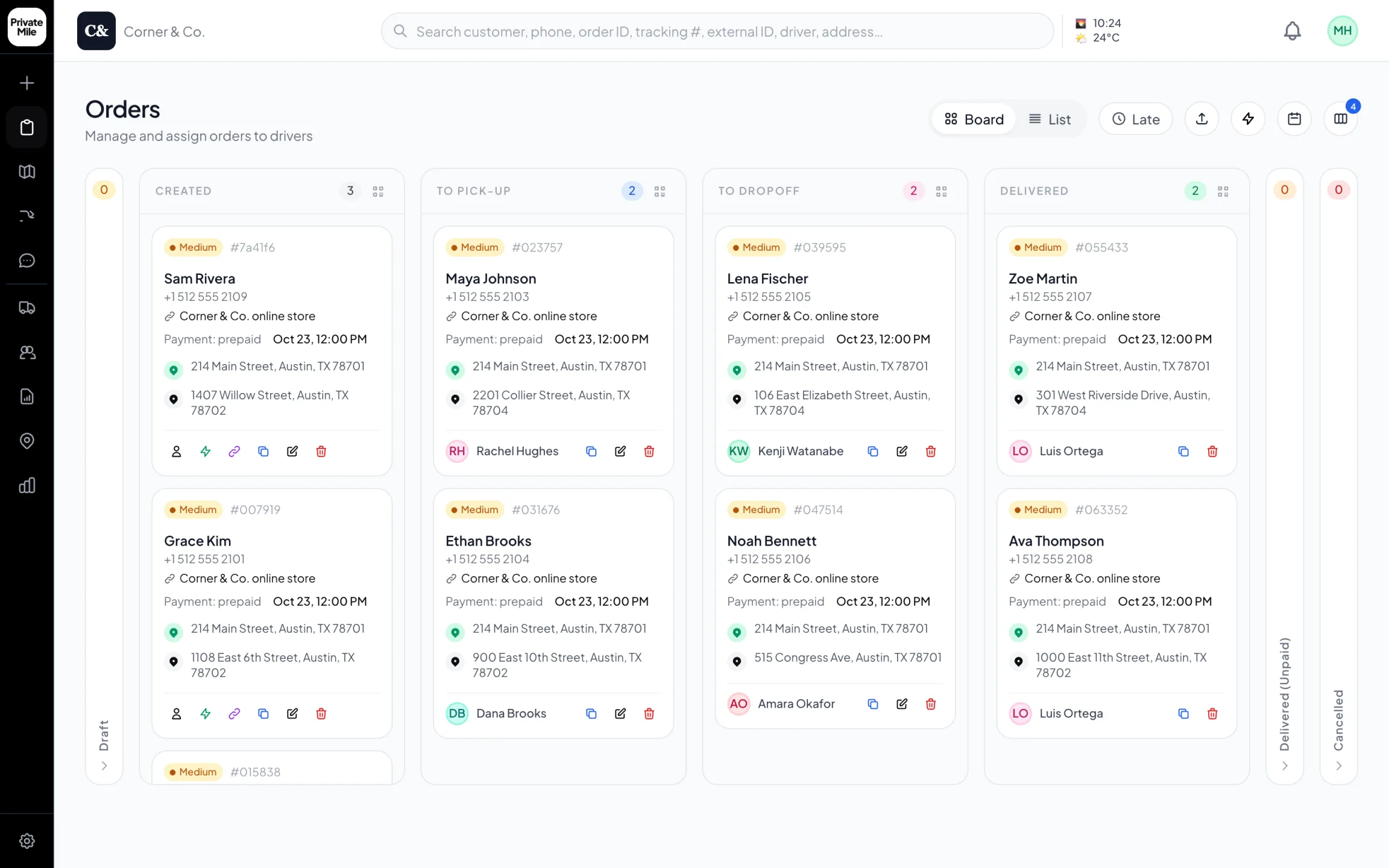
Dispatch board
Every order on one board, the moment it’s placed — online store orders included.
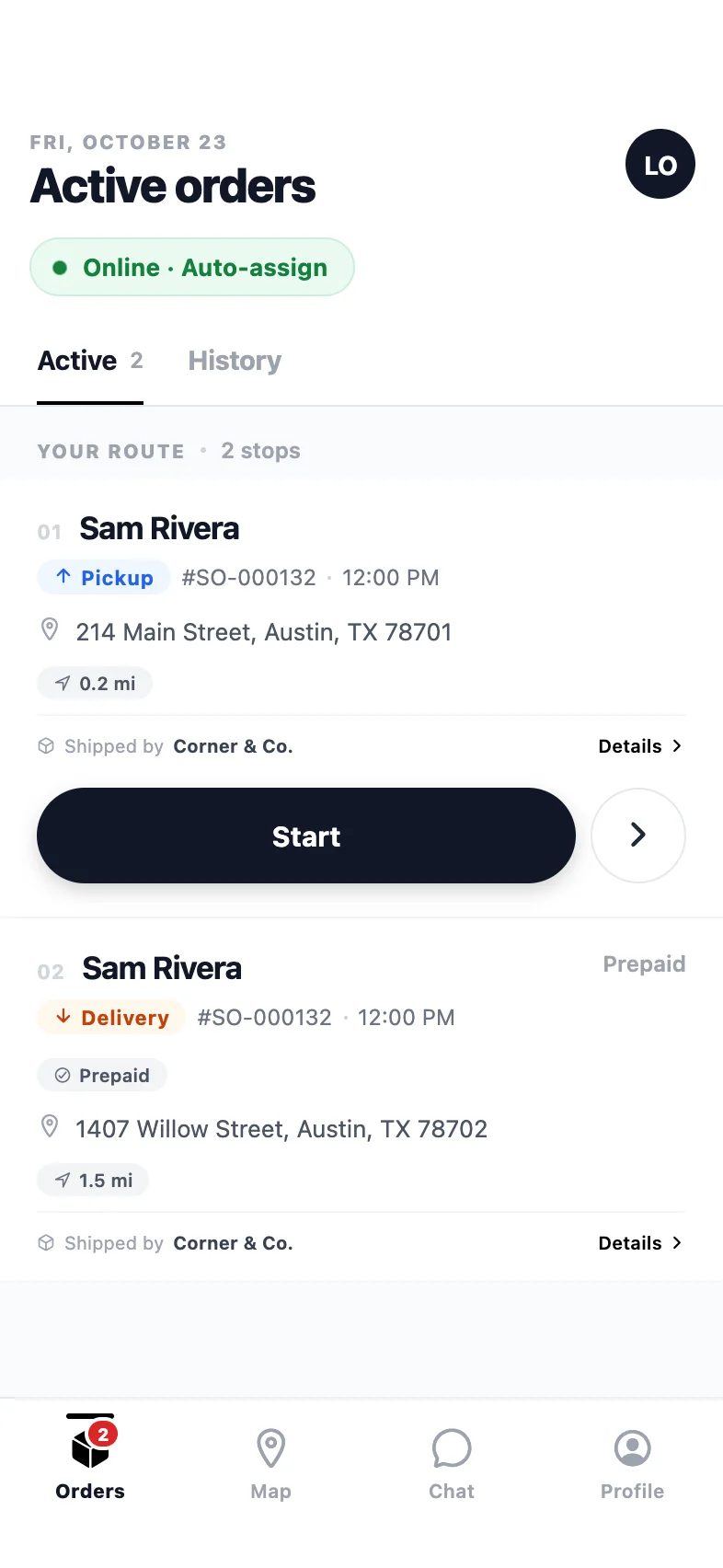
Driver app
The route in order: pickup first, then the drop-off, one clear action per stop.
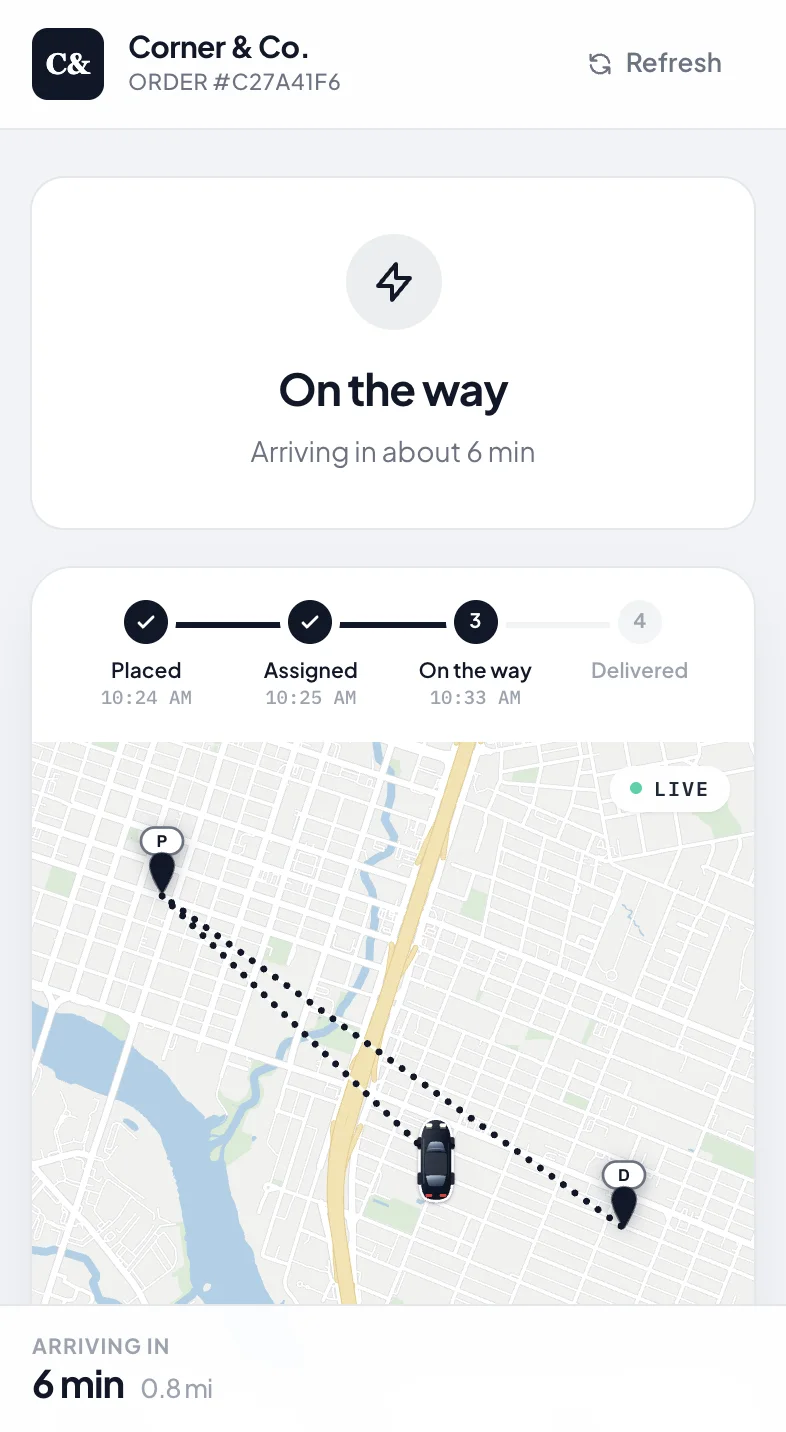
Tracking page
No app needed: a tracking link under your name, live while it’s on the way.
After the order lands
What your customers notice.
Tracking under your brand
Live driver map, arrival window and notifications with your logo. Customers stop asking where the order is.
Authenticated on every request
PrivateMile checks the X-PrivateMile-Key header on every payload and ignores anything without it.
Proof attached to the order
Photo, signature and notes from the driver, on the order, ready if a customer disputes a delivery.
How the BigCommerce connection works
BigCommerce webhooks POST a JSON payload to a URL you register for events such as order creation. Because BigCommerce does not sign those payloads, PrivateMile authenticates each request with a custom header — X-PrivateMile-Key — that you attach when you register the webhook. Requests without the right key are rejected before anything is read.
What dispatch sees
A new order with the customer, phone, geocoded address, line items and checkout comments, carrying the BigCommerce order ID as its reference. The delivery window defaults to your organisation’s setting. Plan it on the map, assign it or let auto-dispatch choose, and follow it to the door.
What the customer sees
A tracking link as soon as a driver is assigned, on a page with your logo and colours. A live map, an arrival window, an “arriving soon” message and proof of delivery when it lands.
If your setup is unusual
Field mappings let you point any field in the payload at any field on the order, so a custom checkout field can become a delivery instruction. For anything the webhook cannot express, the REST API and Zapier are there.
Why a custom header instead of a signature?
BigCommerce does not HMAC-sign webhook payloads, but its webhook API lets you attach custom headers to every request. PrivateMile uses that: you set X-PrivateMile-Key to the key shown when you create the integration, and every incoming request is checked against it.
Do I need a developer to set this up?
Registering a webhook with a custom header is done through BigCommerce’s API, so it helps to have someone comfortable with an API call — it is a single request. We can walk you through it on the trial.
Does delivery status go back to BigCommerce?
Delivery status goes to your customer through PrivateMile’s tracking page, SMS and email. For other systems, every delivery event is available as an outbound webhook and a Zapier trigger.
Other integrations
Plugs into what you already run.
Connect BigCommerce in an afternoon.
Create the integration on the trial, paste one webhook URL into your store, and watch the next order appear on the board.
Questions first? Tell us about your delivery day — or sign in.